Tuesday, September 3, 2019

STLabs India provide you the platform where you can convert your theoretical knowledge to practical and provoke students to ask as many questions till satisfactory answers.

Provide two demo classes free of cost for all courses.

Offer!!..Providing free core java course (one week) till October 2019.


Visit Stlabs India F-7, Sector 3 Noida, Near Sector 16 Metro Station
Website: www.stlabsindia.com
Ph. No: 0120-4282730|| +91-9999176697, +91- 8840153517


Best Software Training Institute in Noida

Best Software Training Institute in Noida, Delhi NCR.

Monday, November 9, 2015

Learn QTP scripting in 5 Minutes...

Yes, you can start QTP scripting with in 5 minutes, how?

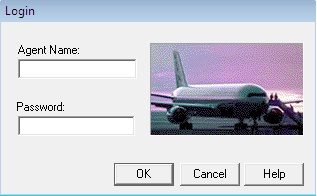
Suppose you want to automate Mercury Application, you will follow the steps:

1. Will launch the QTP and Application
2. Will open the OR to add objects
3. Will start writing script i.e.

Dialog("Login").WinEdit("Agent Name:").Set "mercury"  'Desktop App'
Browser("google).Page("google").WebEdit("abc").Set "Testing"

But what is Dialog/Browser/Page or WinEdit/WebEdit? and Where it comes from?


Dialog is an object of Dialog class and it has a property name "text" and value "Login".

To start writing script go to the root in Object Repository and select the root object (See Login).
Now see its Class under Object Properties that is "Dialog", you can also see "text" property and it's value "Login" in Description properties.

Type "Class(" in Expert View you will see the property comes automatically and close the bracket..

Dialog("Login")


Now select the next object in Object repository, see it's Class "WinEdit" under Object properties and property "attached text" with value "Agent Name:" in Description properties

Dialog(//"Login").WinEdit(..//"Agent Name:")


Now, you don't have any object left in Object Repository side, it indicates you have reached to the object on which you will apply the action.

Dialog(//"Login").WinEdit(..//"Agent Name:").Set "mercury"

Here, "Set" is a QTP method.

Now you have one step ready for Agent Name text box.

Similarly you can generate the step for Password textbox and Ok button.

Dialog(//"Login").WinEdit(..//"Password").Set "mercury"
Dialog(//"Login").WinButton(..//"OK").Click


How QTP and TestComplete Works

Suppose, we are given an application to automate. Let's start


1. Launch QTP.

2. Open Object Repository to add object (Test Time Object Property). You will see 'Agent Name" selected(Left) is a object of a WinEdit class. You can also see the "attached text" test time object property name and it's value "Agent Name:".


3. Dialog('Login").WinEdit("Agent Name:").Set "mercury"

This line says 'Enter "mercury" in "Agent Name:" exists on "Login" Dialog (Screen).

At run time QTP will search for object of WinEdit class whose run time object property is "attached text" and  value is "Agent Name:". If it finds successfully, result is 'Passed" else 'Failed".


How test automation tools work

Although, It very much depends on the tool.

Let's take an example:- What will you do If you are asked to find a person living in a big city and some information of that person are given to you?

City Name: ABC
Street Name: Mall Road
Block: A
House Number: 289
Name of the person: Saad

You will say this is very easy, Yes it is very easy but how it works?

Step1: Will go to that city.
Step2: Will search the street.
Step3: Will search the Block A.
Step4: Will search 289 house number.
Step5: Will call Mr. ABC.

Done!, But how? let me explain:-

You were given some set of properties (Test time Properties). In Step1 you searched for City, how did you know that this is the city you were looking for?

Because, City name which you were given(Test time property) and the city you are in (Run time property) are same. In each step you do the same.

Automation Tool work in the same way.


Friday, August 6, 2010

Checkproperty method in QTP

Checks whether the specified object property achieves the specified value within the specified timeout.

Syntax: object.CheckProperty (PropertyName, PropertyValue, [TimeOut])

Eg. 1. Check the status of page.

>Browser("micclass:=Browser prop").Page("micclass:=Page prop").Object.CheckProperty ("status","done",3000)

Eg. 2.Verify the text AutomationTest has been entered on the name textbox.

>Browser(“micclass:=Browser prop”).Page(“micclass:=Page prop”).WebEdit(“name of text box”).Set “AutomationTest”
sCheck=Browser(“micclass:=Browser prop”).Page(“micclass:=Page prop”).WebEdit(“textbox name”).CheckProperty “value”, “AutomationTest”

Monday, November 30, 2009

Check if a particuar text is present on page or not.

In few of scenarios we have to check that text is present on a page or not.

The following function will return True in case if text exists else function will return False.

'Create Page object
set objpage = Browser(“Browser Prop”).Page(“Page Prop”)

'Calling the function
msgbox VerifyTextOnPage(objParent ,”Test” )

Function VerifyTextOnPage(byval objpage , byval Textvalue )
On error resume next
Set oDesc= Description.Create()
oDesc(“micclass”).value=”WebElement”
oDesc(“html tag”).value=”.*[A-Za-z0-9].*”
oDesc(“outertext”).value =”.*[A-Za-z0-9].*”

'Create ALL child object
set collItems= objpage.ChildObjects(oDesc)

'Get all text from web page and store in a variable

For i=1 to collItems.count
OutPutText= OutPutText & collItems.Item(i).GetROProperty(“outertext”)
Next

'compare the text

If instr(1,lcase(OutPutText),lcase(Textvalue)) > 0 Then

' return true if found

VerifyTextOnPage= True
Else
rem return true if not found
VerifyTextOnPage= False
End If
On Error GoTo 0
End Function

Tuesday, November 24, 2009

Get Mouse Over Color of a Link

Using ReplayType setting to Mouse Events while firing an onMouseOver event on the link.

You will see that the hover event is triggered with the ReplayType set to Mouse Events:

Setting.WebPackage("ReplayType") = 2
Browser("xyz").page("xyz").Link("xyz").FireEvent "onMouseOver"
MsgBox Browser("xyz").page("xyz").Link("xyz").Object.currentStyle.color
Setting.WebPackage("ReplayType") = 1


Or

Function GetoverColor(oLink)
Setting.WebPackage("ReplayType") = 2
oLink.FireEvent "onMouseOver"
GetoverColor = oLink.Object.currentStyle.color
Setting.WebPackage("ReplayType") = 1
End Function

Wednesday, December 17, 2008

How to capture error screen-shot in Result Viewer

How to capture error screen-shot in Result Viewer

Dim path_error_file
path_error_file = "C:\Documents and Settings\Desktop\error.bmp"
Browser("Browser").CaptureBitmap path_error_file,True

Reporter.ReportEvent micFail, Object_snap,
"&"

How to capture a tool tip text of a link in QTP?

How to capture a tool tip text of a link in QTP?

This QTP tutorial shows and explains How to get tool tip in QuickTest Professional.

Actually, this is not a difficult task. The steps are:
1.Place mouse cursor over the link
2.Wait for tool tip
3.Get text of shown tool tip
This QTP script captures a text of a tool tip:
' Place mouse cursor over the link

Browser("Yahoo!").Page("Yahoo!").WebElement("text:=My Yahoo!").FireEvent "onmouseover"
wait 1
' Grab tooltip
ToolTip = Window("nativeclass:=tooltips_class32").GetROProperty("text")

Register User Function.

Register User Function

Suppose that the FindFlights Web page contained a Country edit box, and by default, the box contained the value USA. The following example registers the Set method to use the MySet function in order to report the default value of the edit box to the test results before the new value is entered. The UnRegisterUserFunc method is then used to return the Set functionality to the standard QuickTest functionality.
Function MySet (obj, x)
dim y
y = obj.GetROProperty("value")
Reporter.ReportEvent micDone, "previous value", y
MySet=obj.Set(x)
End Function
RegisterUserFunc "WebEdit", "Set", "MySet"
Browser("MercuryTours").Page("FindFlights").WebEdit("Country").Set "Canada"
UnRegisterUserFunc "WebEdit", "Set"

Automatically Add Resources to a QTP Test


Automatically Add Resources to a QTP Test


Working with external function libraries (e.g., vbs files) is a common practice among advanced QTP practitioners. This feature of QTP enables developers to encapsulate functionality that needs to be reused in the form of functions, subroutines, and even classes. It is even possible to set the currently loaded function libraries as default, and hence every new test would "inherit" these libraries as the project infrastructure. Building automated tests based upon such a robust infrastructure with such components is a highly recommended practice that makes the developer’s work highly efficient.


Nevertheless, QTP doesn’t provide a user friendly way to add such resources to a test. The Test Settings Resources Tab allows the user to add just one file at a time, hence making this a tedious task. Moreover, the list view of function libraries is cumbersome, requiring one to scroll up and down to verify the existence of a specific file, and if these disadvantages are not enough, it also does not support adding the contents of an entire folder. These shortcomings make the task of adding resources time-consuming. Because the projects I lead require the use of hundreds of such function library files, I decided to help-up my team members by automating this process. I had prepared a basic script more than a year ago for this purpose exploiting QTP automation object model (AOM.), but I wanted to improve the script to make it more generic and scalable.

To accomplish this feat I designed the process as follows:

1.Define the test you wish to configure;
2.Define the pathnames of the folders in which the function libraries are stored (can be relative paths);
3.Define whether the test resources should be emptied before adding the new ones;
4.Define whether you wish the test to run after configuration is done
5.Call the configuration script, which should do the following:
Launch QTP;
Open the required test;
Set the search folders in QTP options;
If required, remove function libraries from the test resources;
Add the function libraries located in the search folders to the test resources;
Save the test;
If required, run the test.

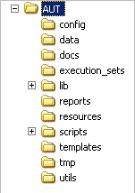
The mechanism is based on 4 files: QtpConfig.wsf, QtpConfig.ini, QtpConfig.bat and RunQtpConfig.bat. The mechanism assumes a standard folder structure which is, in any case, an advisable method to efficiently store the deliverables (function libraries, data files, etc.) of an automation project. The basic folder structure would be like avobe image.

Where AUT stands for Application Under Test, and the folder names are self-explanatory. This scheme enables us to store the QTP tests under the scripts folder and exploit the standard use of search folders by relative paths. In my projects I further use a similar folder structure for Common and Infra projects, which are used by all specific AUT projects. Note: QtpConfig.wsf and QtpConfig.bat are located in the Infra/scripts folder, and the attached files assume this fact for proper functioning. QtpConfig.ini just contains a variable to set the debug mode to true or false, and is located together with the previous two. RunQtpConfig.bat is located in the AUT/scripts folder.
I shall now explain the use of the three main files mentioned above (apart from the ini file which is obvious). QtpConfig.wsf is a Windows Script File written in VBScript; it does the actual QTP configuration work using QTP COM object. QtpConfig.bat is the batch file that calls QtpConfig.wsf while passing the relevant arguments. Finally, RunQtpConfig.bat is a batch file that calls QtpConfig.bat and passes the relevant arguments, which are: TestPathName, Folders, RemoveAllFirst and RunTest. These arguments instruct QtpConfig.wsf what to do and on which test, as described below:

TestPathName is the relative path of the QTP test to be configured.
Folders is a semicolon separated list of folders required to configure the search path of QTP and to find the relevant function libraries.
RemoveAllFirst is a boolean that indicates whether to remove all resources (libraries) before adding them anew.
RunTest is a boolean that indicates whether

How can i check if a parameter exists in DataTable or not?

How can i check if a parameter exists in DataTable or not?

Using the below code:

on error resume next
val=DataTable("ParamName",dtGlobalSheet)
if err.number<> 0 then
'Parameter does not exist
else
'Parameter exists
end if

How to add a constant number in a QTP datatable?

How to add a constant number in a QTP datatable?

Just append ' to the number
Ex: if you wish to enter 1234567 in datatable then write it as '1234567

A message box that will close automatically.

A message box that will close automatically.

You would just create a WScript Shell object and use the Popup method on it.

Set WshShell = CreateObject("Wscript.Shell")
WshShell.Popup "Wait 5 seconds", 5, "Title"